
Time Travel
Replay the entire AI programming process like watching a video, seeing code change with every conversation moment.
What is Time Travel?
Imagine you paired with AI for a whole day and wrote hundreds of lines of code. Now you want to know when a specific function was added, or see how AI refactored your code step-by-step.
Time Travel is Mantra's "Replay" capability:
- Click any conversation message.
- Instantly see the code state at that moment.
- Like a video player progress bar, drag freely to any moment.
Simple Analogy
If Git is the "Save Point" for code, then Time Travel is the "Time Machine" that lets you move freely between these save points.
Want to know about Mantra pricing and add-ons? See Pricing.
Why Time Travel?
When using AI programming assistants (like Claude Code, Gemini CLI, Cursor), you might encounter these issues:
| Problem | How Time Travel Helps |
|---|---|
| Want to know when a feature was implemented | Click along the chat history to find the corresponding time point |
| Code broke, want to review previous version | Click previous messages to view code at that time |
| Want to understand how AI changed it step-by-step | Click messages one by one to observe code evolution |
| Sharing programming ideas with colleagues | Replay the entire programming process from the start |
Interface Layout
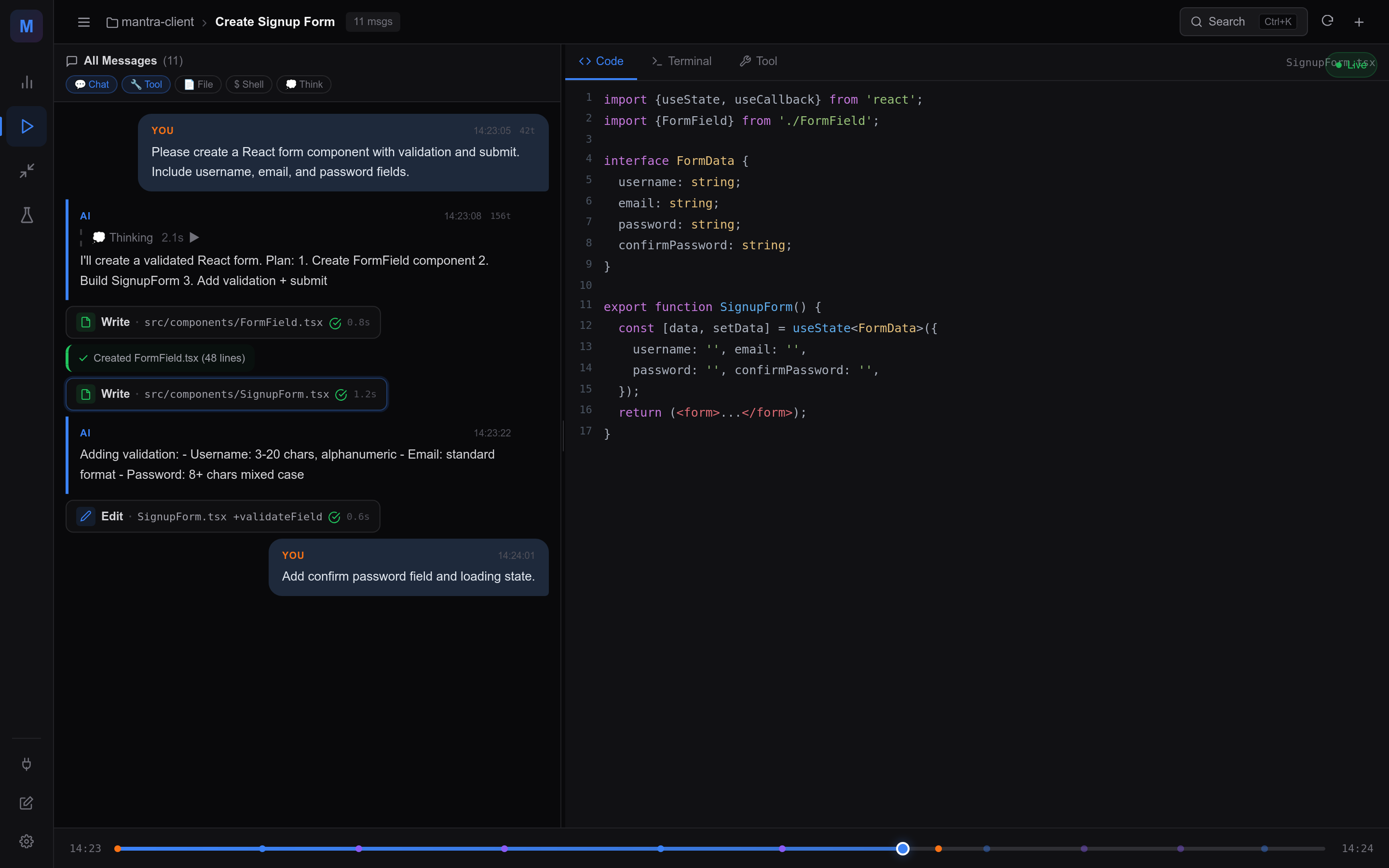
Mantra's overall layout has three areas: the Mode Rail on the far left (to switch between Playback, Refine, Replay, and Analytics modes), the Conversation Panel in the center, and the Code Snapshot Panel on the right.
Conversation Panel (Left)
The left panel displays the complete AI conversation history:
- Message List: All conversations between you and AI, chronologically ordered.
- Time Markers: Each message has a precise timestamp.
- Message Types: Distinguishes between User messages, AI responses, Code execution, etc.
- Current Position: Highlights the message you are currently viewing.
Tip
Conversation logs can be long; use the Message Filtering feature to show only what you care about.
Code Snapshot Panel (Right)
The right panel displays the code state at the selected time point:
- File Tree: Shows the project's directory structure, including deep support for Git Submodules.
- Code Content: Displays the full code of the selected file.
- Diff View: Supports switching to "Diff" mode via the toolbar or shortcut
Dto clearly see changes relative to the previous version. - Highlighting: Marks code changes with different colors.
- Multi-file Switching: Browse any file in the project.
Note
The code snapshot shows the code state when the conversation happened, not the current file content on your computer.
Core Component: TimberLine Timeline
Mantra introduces TimberLine — a refined timeline controller located at the bottom of the interface, giving you pixel-perfect control over time like professional editing software.
Key Node Markers (Tick Marks)
The timeline not only has a progress bar but also marks key events with different colored Tick Marks, letting you identify important moments at a glance:
- 🔵 Blue Dot: User sent messages (your questions or instructions).
- 🟩 Green Square: Git Commit nodes, representing a stable version of code.
- ⚪ Transparent/Gray Dot: AI responses or tool executions.
Precision Navigation
- Drag Slider: Drag the slider left or right to quickly browse the entire session.
- Hover Preview: Hovering over any position on the timeline displays the precise timestamp for that location.
- Click to Jump: Click anywhere on the track to jump immediately to that moment.
Keyboard Control
For pixel-level time control, TimberLine supports keyboard shortcuts (timeline must be focused first):
| Key | Function |
|---|---|
← / → | Fine-tune position (step 1%) |
Home | Jump to start of session |
End | Jump to end of session |
Mode Note
The timeline is only displayed in Playback Mode. If you switch to Refine Mode, the timeline automatically hides to provide a more focused text editing experience.
Basic Operations
Click Message to View Code Changes
This is the core operation of Time Travel:
- Find the message you want to view in the left conversation panel.
- Click this message.
- The right code panel immediately updates to the code state at that time.
Experience the "Aha Moment"
For the first try, click back and forth between two messages far apart. Seeing the code switch instantly will make you truly understand the magic of Time Travel!
Git Integration
Relationship between Code Snapshots and Git History
You might ask: How does Mantra know the code state at each time point?
The answer is Git. Mantra analyzes your project's Git commit history, combined with conversation timestamps, to automatically match the closest code version.
How it works
- Mantra reads timestamps from conversation records.
- Finds the nearest Git commit before this time point.
- Extracts the code snapshot of that commit from Git history.
- Displays this version of code on the interface.
Git Repository Requirements
Time Travel requires your project to meet these conditions:
- Must be a Git Repo: Project root needs a
.gitfolder. - Has Commit History: At least some Git commit records are needed.
- Commit Frequency Matters: More frequent commits mean more precise Time Travel.
Best Practice
When using AI programming assistants, develop a habit of frequent small commits. This allows Mantra to more accurately restore code states at each moment.
Advanced Tips
Combining with Message Filtering
When conversation logs are long, Time Travel works better with Message Filtering:
- First use Message Filtering to screen for key messages (e.g., only show code-related).
- Use Time Travel on the filtered results.
- This lets you skip irrelevant chitchat and see code evolution directly.
File Tree Browsing Tips
Fully utilizing the file tree gives a more comprehensive code perspective:
- Collapse Irrelevant Dirs: Only expand code directories you care about.
- Compare Multiple Files: Switch to view different files at the same time point.
- Track File Creation: Observe at which time point a new file appeared.
- Track File Deletion: Discover when a file disappeared.
FAQ
Code snapshot not showing?
Possible Reasons:
Project has no Git repo
- Solution: Run
git initin project root.
- Solution: Run
No Git commits
- Solution: Create at least one commit
git add . && git commit -m "Initial commit".
- Solution: Create at least one commit
Time Travel out of sync with IDE code?
This is normal.
Mantra shows code versions in Git history, while IDE shows current state of local files.
Difference:
- Mantra Time Travel: Git committed historical versions.
- IDE/Editor: Real-time content of local files (may contain uncommitted changes).
If you want to see the latest code in Mantra, you need to git commit your changes first.
Next Steps
After mastering Time Travel, explore more features:
- Message Filtering - Screen key info in conversations
- Modes - Use Refine Mode to optimize context
- Content Redaction - Protect sensitive code info