
Getting Started
Experience Mantra's time travel feature in just 5 minutes.
Follow this guide to: Download & Install → Import a Project → Experience Time Travel.
Before You Begin
Estimated time: 1 minute
System Requirements
| Operating System | Minimum Version | Architecture |
|---|---|---|
| macOS | 12.0 (Monterey) or later | Intel / Apple Silicon |
| Windows | Windows 10 (1903) or later | x64 |
| Linux | Ubuntu 22.04 / Debian 12 / Fedora 36 or equivalent | x64 |
Storage Space
The installed application takes about 70–150MB. Imported project data is stored locally — plan on at least 500MB to accommodate session caches and code snapshots.
What You'll Need
- A project that has been used with an AI coding tool (Claude Code / Gemini CLI / Cursor / Codex / GitHub Copilot Chat / OpenCode)
- The project should contain some AI conversation history to experience time travel
Don't have a project ready?
No worries! You can first use Claude Code or another supported AI tool to complete a small task, like creating a simple Hello World program, then come back to import that project. The whole process takes just a few minutes.
Step 1: Download and Install
Estimated time: 1 minute
Download Mantra
Visit the Mantra website to download the version for your operating system.
macOS Installation
- Open the downloaded
.dmgfile (pickmacos-arm64for Apple Silicon,macos-x64for Intel) - Drag Mantra to the Applications folder
- Open the Applications folder and double-click Mantra to launch (the app is notarized by Apple and opens directly)
Windows Installation
- Run the downloaded
.exeinstaller (use.msiinstead for enterprise bulk deployment) - Follow the installation wizard (default options work fine)
- After installation, find Mantra in the Start menu
Linux Installation
Choose the package for your distribution:
# Debian 12+ / Ubuntu 22.04+ (prefer apt — it resolves dependencies automatically)
sudo apt install ./Mantra_*_linux-x64.deb

# Fedora 36+ / RHEL 9+
sudo dnf install ./Mantra_*_linux-x64.rpm

# Or use AppImage (universal, no install)
chmod +x Mantra_*_linux-x64.AppImage
./Mantra_*_linux-x64.AppImage
Package Manager Installs
Homebrew, Scoop, Winget, AUR, and similar package manager installs are not yet available. For now, download the installer from the website or GitHub Releases. See the Installation Guide for details.
Step 2: Import a Project
Estimated time: 2 minutes
This step imports your AI coding conversation history into Mantra.
Launch Mantra
Double-click to open the Mantra application. On first launch, you'll see an empty interface—this is normal, as you haven't imported any projects yet.
Start Importing
- Click the "Import" button at the top
- Select your AI tool:
- Claude Code - Anthropic's command-line AI assistant
- Gemini CLI - Google's command-line AI assistant
- Cursor - AI-powered code editor
- Codex - OpenAI's command-line AI assistant
- GitHub Copilot Chat - VSCode / JetBrains
- OpenCode - Open-source AI coding CLI
- Mantra will automatically scan your computer for projects and list all importable ones
- Select a project you want to view and click "Import"
Import Duration
- Small projects (<100 messages): ~1-2 seconds
- Medium projects (100-500 messages): ~2-5 seconds
- Large projects (>500 messages): ~5-30 seconds
You'll see a progress bar during import. Please be patient.
Step 3: Experience Time Travel
Estimated time: 1 minute
After import completes, you'll see Mantra's core interface—this is the magic moment!
Understanding the Layout
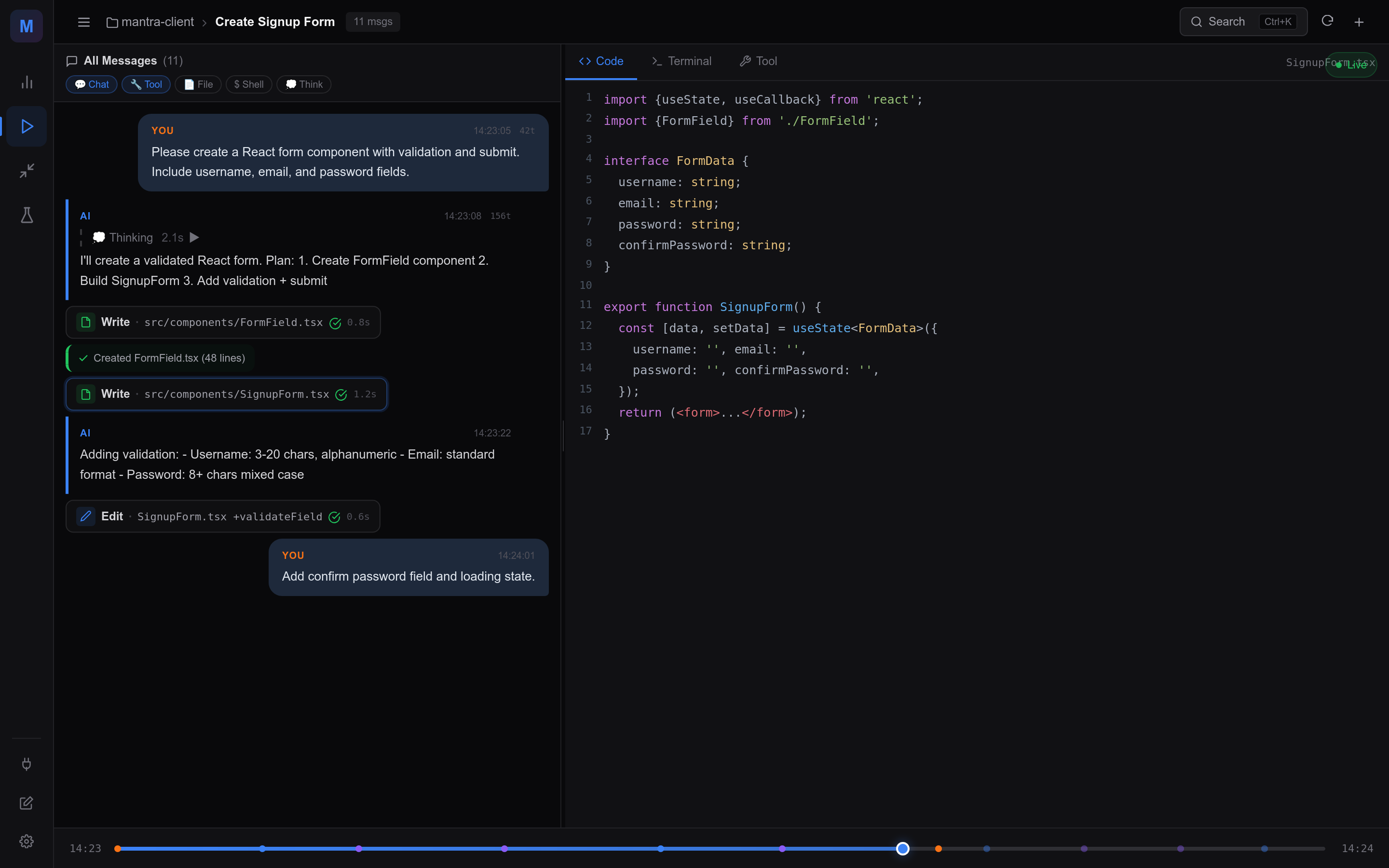
- Left Panel: Complete AI conversation history, arranged chronologically
- Right Panel: Code state view, displaying project files
- Timeline: (if available) Visual representation of project evolution
Start Time Traveling
Now, try the most magical feature:
- In the conversation list on the left, click any historical message
- Watch the code panel on the right—the code automatically changes to that point in time!
- Click another message, and the code changes again
🎉 The "Aha!" Moment
Congratulations! What you just experienced is the core magic of Mantra:
When you click a message from a few days ago, the code on the right suddenly changes—to the version from that point in time! Click another message, and the code changes again.
It's like having a time machine for your code, letting you freely travel to any moment in your project's history.
Why This Matters
During AI-assisted coding, code changes frequently. Sometimes you want to recall "how did the AI solve that problem?" or "what did that deleted approach look like?"—now, just click the corresponding conversation message, and the answer is right there.
Frequently Asked Questions
Can't find my project during import scan?
Possible causes:
- Your AI tool stores conversation logs in a non-standard location
- The project hasn't had any AI conversations yet
Solutions:
- Confirm you've selected the correct AI tool type
- Try manually specifying the project path (click the "Browse" button)
- Ensure the project contains AI conversation history files
No conversation history after import?
Possible causes:
- The project has no valid conversation data
- The conversation data format is not supported
Solutions:
- Use a supported AI tool (Claude Code, Gemini CLI, Cursor, Codex, GitHub Copilot Chat, OpenCode) to have some coding conversations
- Re-import the project
Code doesn't change during time travel?
Possible causes:
- The clicked message might be pure conversation content without code changes
- That point in time has the same code state as currently displayed
Solutions:
- Try clicking messages that contain code modifications (usually AI response messages)
- Click messages that are further apart in time
How do I import multiple projects?
Simply repeat the "Import" process. Each project is managed independently in Mantra, and you can switch between projects using the project selector in the top-left corner.
Next Steps
Congratulations on completing the quick start! Now explore more features:
Get Help
Having trouble? Visit the Mantra website, check the FAQ, or see Pricing & add-ons for more assistance.