
Replay Mode (Cognitive Replay)
Mantra v0.11.0 introduces the brand-new Replay Mode. While "Time Travel" lets you look back at history, "Replay Mode" empowers you to hand-reproduce every AI operation in a safe, real-world environment.
What is Replay Mode?
Replay Mode allows you to step-by-step execute all suggestions made by the AI in a session (including creating files, modifying code, and executing commands) within a real file system.
- Deterministic Replay: No LLM calls; it's entirely based on the operational instructions from the session history.
- Step-by-Step Execution: Every change generates a preview for your confirmation before being applied.
- Safety Sandbox: By default, it runs in an isolated temporary directory, keeping your original project untouched.
Difference from Playback Mode
- Playback Mode: Purely visual historical review with no impact on local files.
- Replay Mode: Real file operations aimed at reconstructing code states or validating AI solutions.
Key Features
1. Step-by-Step Preview
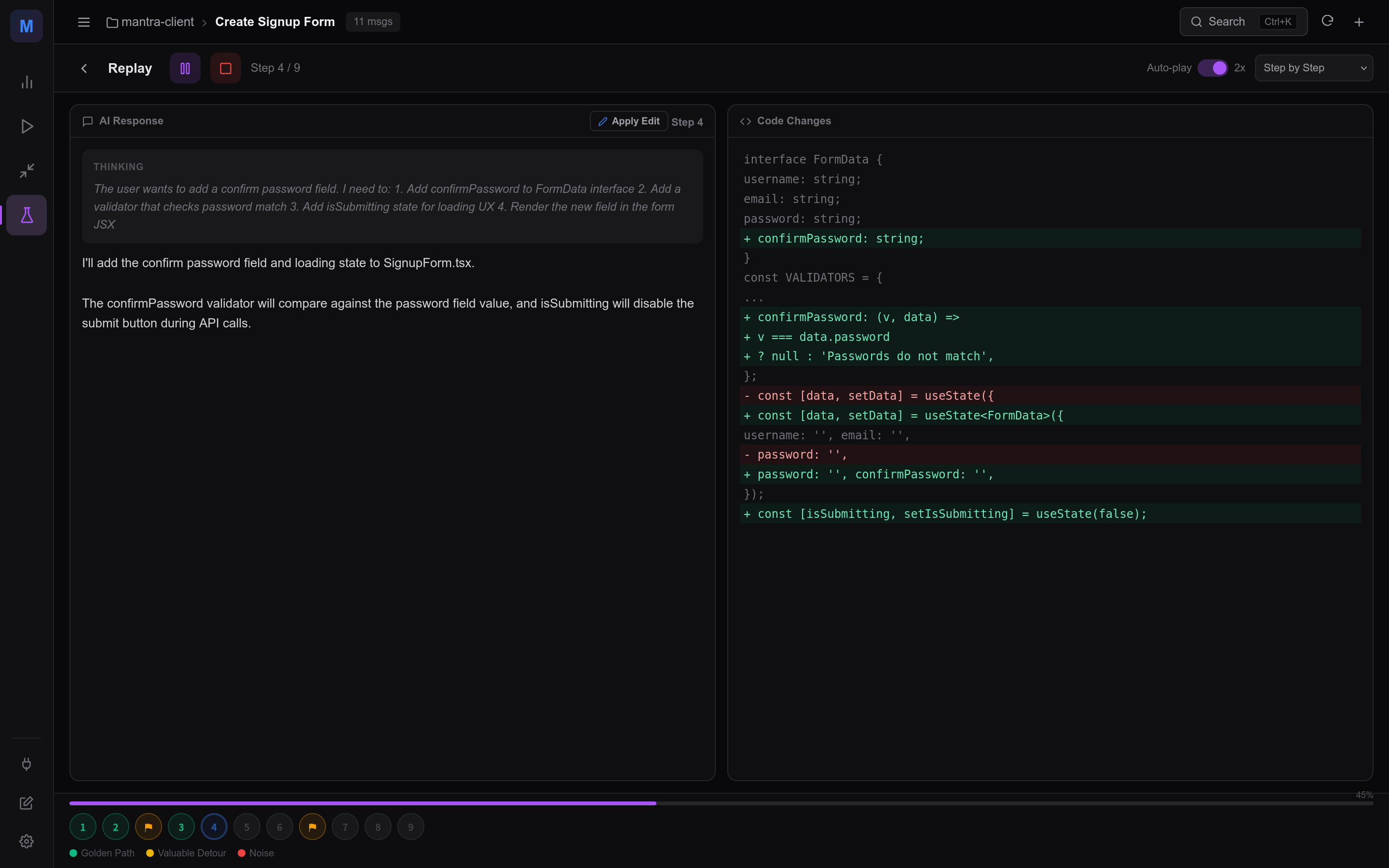
This is the default workflow for Replay Mode. The engine reads the next operation and generates a Diff preview:
- Left Panel: Displays the AI's thinking process and explanations.
- Right Panel: Shows "Upcoming Changes".
- Confirmation Mechanism: You can choose to "Execute This Step", "Skip", or "Look Back at Previous Step".
2. Default Workspace
For a zero-friction experience, Mantra automatically creates a default replay directory for each session: {app_data_dir}/replay/{session_id}/ You can start immediately without manually selecting a directory. You can also click "Change" before starting to specify a particular local path.
3. Auto-Play & Speed Control
If you want to see the final result quickly, you can enable "Auto-Play":
- Offers 1x / 2x / 5x speed settings.
- Automatically cycles through confirmations until an error is encountered or manually paused.
4. Fault Tolerance & Recovery
If a step fails during replay (e.g., file permission issues or conflicts):
- The system logs the failure reason.
- Provides the ability to "Retry" or recover from the most recent stable checkpoint.
How to Use
- Click the "Replay" icon in the Mode Rail on the left side of the interface.
- In the guidance card that appears, confirm the workspace path.
- Click "Start Replay" to enter the step-by-step interface.
- Review the change preview on the right and click "✓ Execute This Step" to proceed.
- Once complete, you can click "Open in Editor" to view the generated code directly.
FAQ
Will Replay Mode modify my original code?
Not by default. The system creates an independent copy in Mantra's application data directory for the replay. Unless you manually point the workspace to your original project directory (not recommended for important projects).
What if a command execution step is dangerous?
Replay Mode displays the full command text when encountering an execute_command step. You can choose to "Skip" that step or ensure the environment is safe before execution.
Next Steps
- Time Travel - Review conversation history
- Project Management - Manage your replay workspaces
- Keyboard Shortcuts - Master efficient replay operations